Your customers follow your LINE Official Account. Your team handles service in Zendesk. When you want to reach a selected group and respond to the conversations that follow, how do you connect the two?
Quick answer: Connect your LINE Official Account and Zendesk to CXBOX HUB, create an eligible audience, build a LINE campaign in CXBOX HUB, and send it after checking your message and channel limits. Customer replies can then be handled through your configured Zendesk workflow. The campaign is managed in CXBOX HUB; Zendesk is the service workspace.
LINE makes it easy to reach people where they already talk to businesses. But a broadcast that simply goes to everyone can waste message allowance and bring in replies your team is not ready to handle. A more useful campaign starts with a reason to contact a particular group and ends with a clear plan for the response.
CXBOX HUB adds audience segmentation and outbound campaign management to a Zendesk-connected operation. Its Zendesk Marketplace listing describes support for LINE and other messaging channels, personalized outbound campaigns, engagement insights and conversation routing.

What does “LINE broadcast from Zendesk” mean?
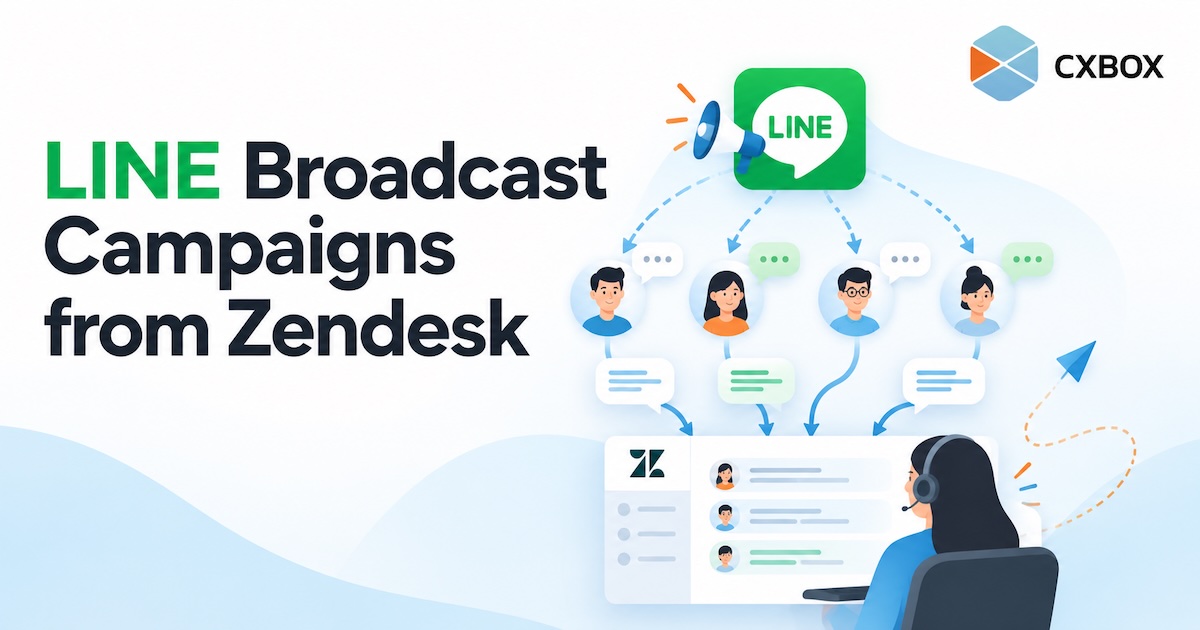
In this workflow, Zendesk is connected to the customer conversation. CXBOX HUB is where you prepare the audience and send the outbound LINE campaign. Your LINE Official Account is the channel customers receive it on. You are not pressing a native Zendesk “broadcast” button.
There is also a useful distinction in LINE’s own terminology:
| LINE message type | Who receives it |
|---|---|
| Broadcast | Friends of the LINE Official Account who are eligible to receive the message. |
| Targeted campaign | A selected group, subject to the channel’s available identifiers, audience rules and account setup. |
Businesses often call any one-to-many LINE campaign a “broadcast.” The distinction matters when you plan who should receive it and estimate how many messages it will use. LINE’s Messaging API has different methods for broadcasting to all friends and sending to specified or filtered recipients.
How to send a LINE campaign with CXBOX HUB and Zendesk
Connect the three parts
Set up the LINE Official Account channel in CXBOX HUB and complete the Zendesk integration. The Zendesk Marketplace listing notes a Sunshine Conversations requirement, so check the entitlement and configuration for your account. Before any campaign, send a test message and confirm how a customer reply reaches the team.
Choose a meaningful audience
Start with a specific reason to contact someone: customers awaiting an appointment, members eligible for a benefit, or people who asked about a product. Use the customer information available in your CXBOX HUB setup to create a segment. Check that the contacts are reachable through your LINE Official Account and that the message is appropriate for them.
Create the LINE message
Write the message for the action you want the recipient to take. Say why they are receiving it, keep the main point visible on a phone, and give one clear next step. Depending on the supported message format in your setup, you may use text or visual content. Preview the final message before scheduling or sending.
Review the audience and sending allowance
Confirm the number of intended recipients, message format, timing and LINE Official Account message allowance. LINE applies monthly limits and charging rules that depend on the account and market. A large audience can use that allowance quickly, so test the campaign and its recipient selection before launch.
Send, then handle the replies
Launch the campaign in CXBOX HUB and monitor its results. When a customer responds, your configured integration can route the conversation to your service workflow in Zendesk. Make sure agents know which campaign prompted the reply and who owns the next step.

Example: an appointment reminder that starts a real conversation
A clinic has customers with appointments next week. Instead of sending a generic announcement to every LINE follower, it prepares a relevant audience and sends a clear reminder through CXBOX HUB. One customer confirms. Another needs to change the time. With the LINE conversation connected to the service workflow, the second reply can be handled by the right team in Zendesk.
The value is not just sending a message. It is giving the team a way to act on what customers say back.
What to check before you launch
- Reachability: a phone number or a Zendesk customer record alone does not mean the person can receive a LINE message from your Official Account.
- Audience quality: select recipients based on a relevant relationship or interaction, and respect customer preferences.
- Message allowance: review the current LINE plan and estimated delivery volume.
- Reply ownership: test your Zendesk routing and decide who handles responses.
- Measurement: look beyond messages sent. Track the replies and useful customer actions that follow.
Frequently asked questions
Can Zendesk send a LINE broadcast by itself?
This article describes a Zendesk-connected workflow using CXBOX HUB for audience selection and campaign sending. It does not describe a native broadcast function in Zendesk.
Can I message every contact in Zendesk on LINE?
No. The contact must be reachable through the connected LINE Official Account, and the audience must satisfy the applicable channel and configuration rules. A Zendesk record by itself does not make a person a LINE recipient.
Is a targeted campaign the same as broadcasting to every LINE follower?
No. A campaign for a selected audience has different recipient logic from a message sent to all eligible friends of the Official Account. Check your CXBOX HUB setup and LINE account before launch.
Will every reply automatically become a Zendesk ticket?
Ticket creation and routing depend on the connected workflow you configure. Test the actual reply path before sending the campaign.
Further reading: CXBOX HUB · CXBOX HUB on Zendesk Marketplace · LINE Developers: Sending messages · LINE Developers: Messaging API pricing