How to Send WhatsApp Broadcasts from Zendesk
Your customer conversations live in Zendesk. Your next WhatsApp campaign should connect to them, too. Here is how CXBOX HUB helps you reach a selected audience and handle the replies.
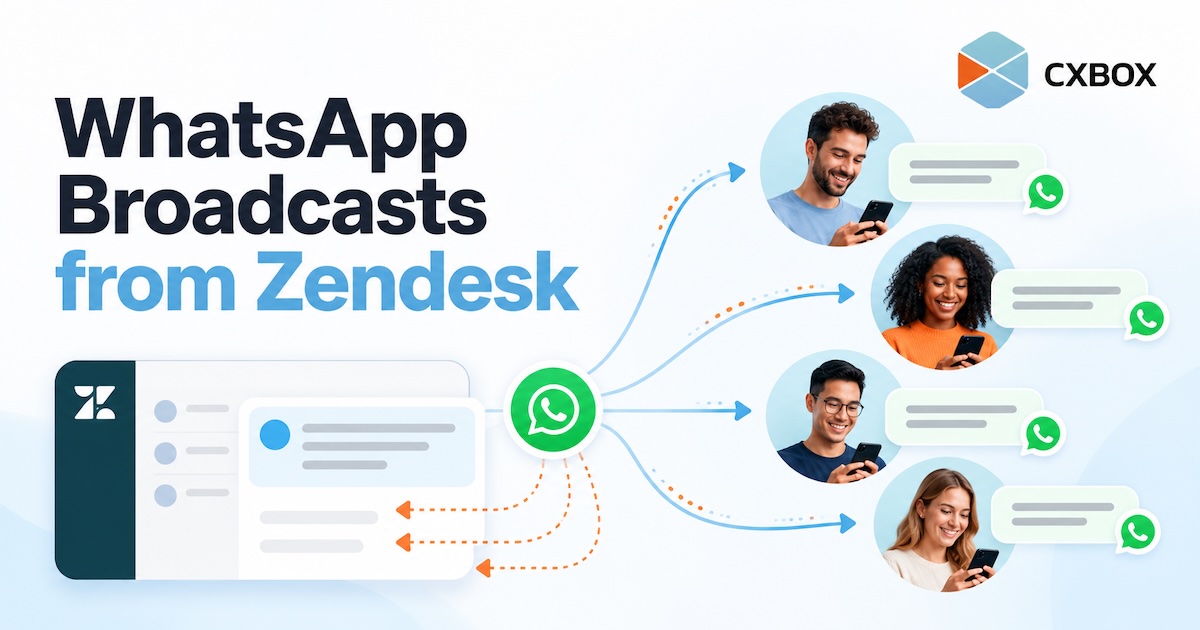
Quick answer: Connect your WhatsApp Business channel and Zendesk to CXBOX HUB. Build or import an eligible audience, prepare an approved WhatsApp message template, create and send the campaign in CXBOX HUB, then manage incoming customer replies through the connected Zendesk workflow. The broadcast is created in CXBOX HUB; Zendesk remains the service workspace for conversations.
A broadcast is useful when you need to start a conversation with many customers at once: a renewal reminder, an event invitation, a service update or a relevant offer. But sending the message is only the first half of the job. When someone replies, your team needs to know who they are, why they were contacted and what to do next.
CXBOX HUB connects outbound campaign management with a Zendesk-based customer service operation. It supports audience segmentation, WhatsApp template campaigns and campaign reporting, while the CXBOX HUB listing in the Zendesk Marketplace describes its Zendesk and messaging-channel integration.

What you need before sending
- A connected setup: a CXBOX HUB account, the relevant Zendesk integration and a WhatsApp Business channel configured for the campaign.
- An eligible audience: contacts with valid WhatsApp numbers and the appropriate consent to receive messages from your business. A phone number in a spreadsheet alone does not establish opt-in.
- An approved template: business-initiated WhatsApp messages use approved message templates. Choose the correct purpose and category for the message.
- A plan for replies: decide which team owns responses, what context agents need and what should happen after a customer answers.
How the workflow works
Connect WhatsApp, CXBOX HUB and Zendesk
Complete the channel and Zendesk integrations in CXBOX HUB. Confirm that customer messages can reach the intended team before launching a campaign. Integration steps and available features depend on your account configuration and plan.
Choose the people you want to reach
Use customer information available through the connected environment, or import an eligible contact list into CXBOX HUB where appropriate. Create a segment around a real business reason to contact customers, such as contracts approaching renewal. Check consent and remove invalid or excluded contacts before sending.
Prepare the WhatsApp message template
Write a message that makes the reason for contact clear and gives the customer an easy next step. CXBOX HUB describes two template workflows: create a template within CXBOX HUB or create it in Meta and sync it back. Wait for approval and verify the final template before using it in a campaign.
Create and launch the campaign in CXBOX HUB
Select the WhatsApp channel, your audience and approved template. Review the recipient segment, message variables, links and timing. Send immediately or schedule it where your configuration supports scheduling. Start with a small internal test so you can check how the message and its reply path appear.
Work the replies in Zendesk
When customers respond, the connected workflow can bring the conversation to your service team in Zendesk. Make sure agents can recognize the campaign and handle questions, objections or requests to stop receiving messages. Review campaign results alongside the conversations that followed.

A practical example: policy renewal outreach
Suppose an insurance team wants to remind customers whose policies are approaching renewal. It selects eligible customers, uses an approved WhatsApp template with a clear renewal prompt and sends the campaign through CXBOX HUB. One customer asks about coverage; another requests a call. Their responses become conversations for the team to handle in Zendesk, where an agent can continue the discussion rather than treating the broadcast as the end of the journey.
The same pattern can apply to appointment reminders, event follow-ups or customer re-engagement. The segment, consent and message category should fit the actual use case.
What “from Zendesk” means here
The title reflects a Zendesk-connected operation. CXBOX HUB is the campaign layer where the audience and broadcast are managed; Zendesk is the workspace where your team handles connected customer conversations. If you are looking for a native Zendesk broadcast button, that is not the workflow described in this article.
Before you launch: WhatsApp requires opt-in for business-initiated messaging and uses approved templates for those messages. Delivery, eligibility, limits and charges can depend on Meta policies, the recipient and your account setup. Check the current WhatsApp Business Platform rules for your market and message type.
Frequently asked questions
Can I upload a CSV of phone numbers and broadcast to them?
CXBOX HUB describes importing external contacts for WhatsApp campaigns. Import capability does not remove the requirement to have appropriate consent and valid recipient data. Clean and verify the list before building a campaign.
Do I need a WhatsApp template?
For a business-initiated broadcast, plan to use an approved WhatsApp message template. Prepare it in CXBOX HUB or Meta according to your setup and confirm approval before sending.
Will customer replies appear in Zendesk?
CXBOX HUB is designed to connect outbound campaigns with inbound conversations through Zendesk. Confirm the specific routing and ticket behavior in your integration during testing, especially if your team uses custom workflows.
Is CXBOX HUB the same as Zendesk?
No. CXBOX HUB adds campaign, audience and messaging capabilities around a Zendesk-connected operation. The two products play different roles in the workflow.